
Note: Compliant Surcharging is not included in all Practice Management Bridge plans. For more information about your plan, contact our Customer Care team by calling 800-337-3630 or emailing [email protected].
You can find the surcharge amount for reporting purposes in Bridge Payments and exported reports.
Instructions
To find the surcharge amount on transactions in Bridge Payments:
- Click Reports > Transaction Search in the left menu.
- (Optional) Enter search criteria and click Search.
- Find the Surcharge column in the Search Results section.

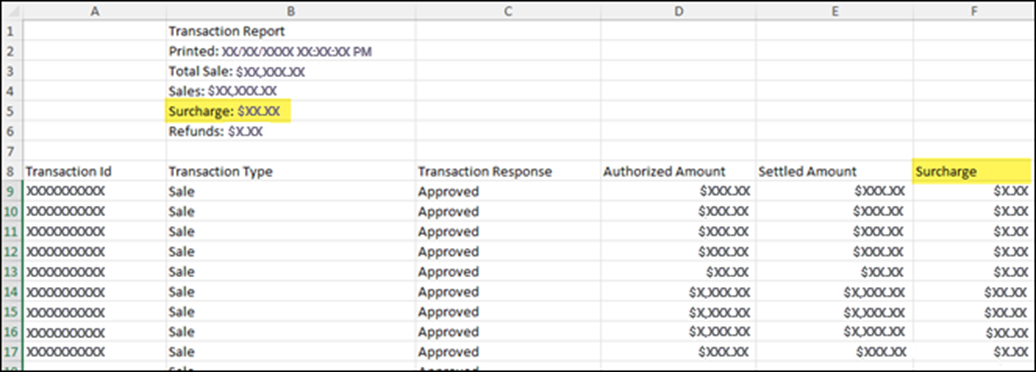
In an exported report from Bridge Payments, there are two places where you can see surcharge amounts:
- The surcharge account summary, which is located at the top of the report.
- The surcharge column, which is provided within the report.
Helpful?