
About Online Payments (Balance Collect)

Home Payments Management Bridge Additional Features About Online Payments (Balance Collect)

About Balance Collect

Balance Collect is the patient-facing online payment feature included with your Bridge Payments account. It gives patients a simple, convenient way to pay outstanding balances anytime, from any device. For practices, Balance Collect helps reduce paper billing, speed up payments, and improve the overall patient experience.

Balance Collect is optimized for all web browsers and is designed to be mobile-friendly. To see an example, visit our Balance Collect payment page demo.

Your payment link makes these options possible:

  • Open your online payment page on a device and let clients enter and submit their own payment information.
  • Display your QR code where clients can scan it with their smartphone. For example, hold a laminated QR code or display it digitally on your cellphone or tablet.
  • Text or email your payment link and the balance due to have the client pay online.
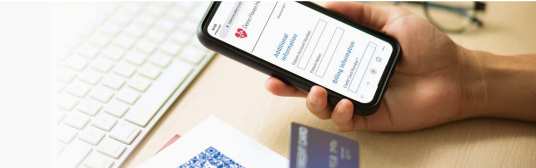
    A patient goes to pay their bill online by scanning the QR code with their smartphone.

Customizable For Your Needs

Balance Collect pages are branded to match your patient experience, including headers, footers, and logo.

If your organization has multiple locations, you can set up a drop-down list that displays all associated locations, allowing patients to select the one where they received care. The names in the list are fully customizable to make them easy for patients to recognize—for example, “Dr. Smith’s Main Street Location” or “Dr. Smith’s Elm Street Location.”
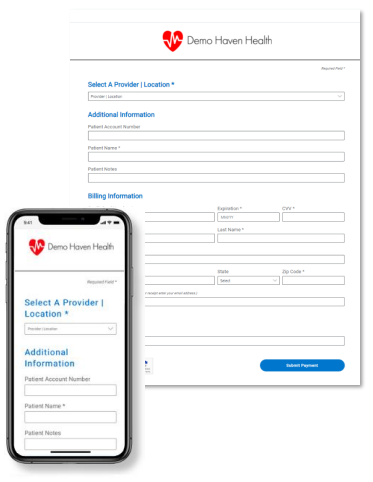
Sample Balance Collect pages on a smartphone and webpage.

Getting Started with Balance Collect

To get started:

  1. Locate your customized Balance Collect link and custom QR code that’s connected to your payment site.
    These are s
    ent during onboarding from [email protected]. Call our Care Team at 800-337-3630 (option 3) if you can’t locate them.
  2. Display your Balance Collect link and/or QR code in five easy-to-find places:
    1. In a prominent location on your website
    Practice websites are often the first places that patients look to see if they can pay online. Add an online payment button in an obvious location, such as the header area, with a descriptive name like Pay Bill, Pay Online, Pay Your Bill, or Make a Payment. Your IT team should be able to paste the payment link behind a button to add it to your site. Contact Customer Care at [email protected] or 800-337-3630 (option 3) if you need assistance.
    An example practice webpage that has a Pay Your Bill button.
    2. In your billing statements
    When opening statements, patients are likely to first check to see what they owe, and then look for where they can pay in the most convenient way. Include both your payment link and your QR code so that patients can open your payment site using either method.
    An example billing statement with online, phone, and QR code payment options.
    3. On printed flyers around your office and that patients can take
    By simply scanning your QR code with their smartphone's camera, patients can go straight to your online payment site. Use the QR code that was sent to you by the Implementation team in prominent displays around your office to increase awareness of your online payment offering and to encourage patients to make payments before they leave. Having printed handouts patients can take is also an option.
    To see how a QR code works, open your smartphone's camera, point the camera over the sample QR code below, and click Open on the pop-up message to go to an example webpage for fast, secure payments.
    A sample QR code.
    4. In staff email signatures
    If you send e-statements, include your payment link in the body of your email. For other types of email communications, you can add your payment link to email signatures to inform patients of your new payment method, like the example below:
    An example email signature that includes a payment link.
    5. Within Text-to-Pay messages

    If you use text messaging to communicate with your patients, insert your payment link in messages to reach patients with a convenient payment method. Your online payment site is mobile-friendly for seamless payments start to finish right through your patients' phones. In Practice Management Bridge, you can insert your payment link by sending Text-to-Pay messages through the Patient Express feature, as shown in these screenshots.
    A smartphone has a text message with a payment link, and a computer shows the Custom Patient Text Message pop-up.
  3. Promote this new, convenient option to patients.
    Encourage front desk staff to inform patients during check-in/out and send an email announcing the exciting news!

For more information on getting started with Balance Collect, see Telling Your Patients About Online Payments (Balance Collect).

For questions or support regarding Balance Collect, contact our Customer Care team at 800-337-3630 (option 3) or [email protected].

Helpful?