
You can accept online payments with the Balance Collect feature in Bridge Payments.
Prerequisites:
- Receive the customized Balance Collect link and QR code connected to your payment site from [email protected] during onboarding.
Interactive Walkthrough
To follow an interactive walkthrough on Balance Collect, see How to Use: Balance Collect.
Text Instructions
- Locate your customized Balance Collect link and custom QR code that's connected to your payment site.
- Display your Balance Collect link and/or QR code in easy-to-find places.
- Promote this new, convenient option to patients.
Tip: Encourage front desk staff to inform patients during check-in/out and send an email announcing the exciting news.
Best Practices
You should display your Balance Collect link and/or QR code in five easy-to-find places:
- In a prominent location on your website
Practice websites are often the first places that patients look to see if they can pay online. Add an online payment button in an obvious location, such as the header area, with a descriptive name like Pay Bill, Pay Online, Pay Your Bill, or Make a Payment. Your IT team should be able to paste the payment link behind a button to add it to your site.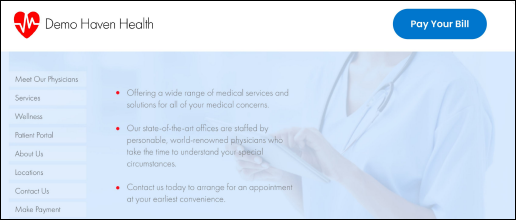
- In your billing statements
When operating statements, patients are likely to first check to see what they owe and then look for where they can pay in the most convenient way. Include both your payment link and your QR code so that patients can open your payment site using either method.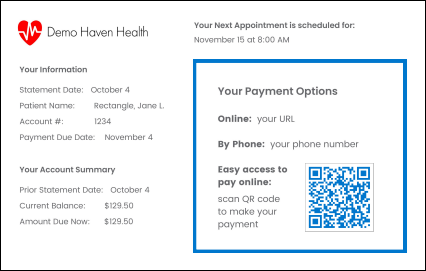
- On printed flyers around your office and that patients can take
By scanning your QR code with their smartphone's camera, patients can go straight to your online payment site. Use the QR code that was sent to you by the Implementation team in prominent displays around your office to increase awareness of your online payment offering and to encourage patients to make payments before they leave. Having printed handouts patients can take is also an option. - In staff email signatures
If you send e-statements, include your payment link in the body of your email. For other types of email communications, you can add your payment link to the email signatures to inform patients of your new payment method.
- Within Text-to-Pay messages
If you use text messaging to communicate with your patients, insert your payment link in messages to reach patients with a convenient payment method. Your online payment site is mobile-friendly for seamless payments start-to-finish right through your patients' phones. In Practice Management Bridge, you can insert your payment link by sending Text-to-Pay messages through the Patient Express feature.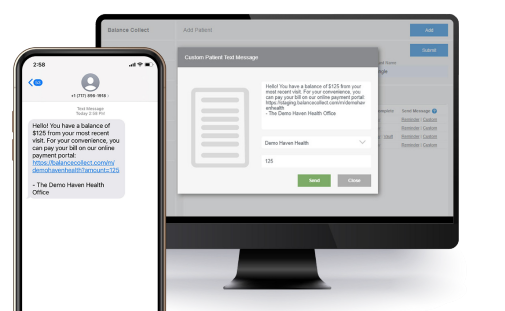
See a QR Code Example
To see how a QR code works with an example webpage:
- Open your smartphone's camera.
- Point the camera over the sample QR code below.
- Click Open on the pop-up message.

Need Help?
For questions or support regarding Balance Collect, contact our Customer Care team at [email protected] or 800-337-3630 (option 3).
If you can't locate your customized Balance Collect link or QR code, call our Customer Care team.
Helpful?