
You can access your Explanation of Payments (EOPs) within Bridge Payments. Actions you can take include viewing insurance payments, remittance details, and EOP information.
Video Instructions
Go to the 1 minute, 29 seconds to 1 minute, 49 seconds marks of the video to see how to view your EOPs.
Text Instructions
When an electronic insurance payment processes through PayerSync, the payment and remittance details are available in the Claim Payments Report in Bridge Payments.
There are two ways to access EOPs.
View the Original EOP PDF
Availability: This option is only available for claim payments from certain payer partners. If View EOP is not available, follow the steps under View EOP Details Within PayerSync.
- Choose PayerSync in the left menu.
- Click View EOP for the claim payment.
The original EOP will open as a PDF in a new tab, where you can view, print, or save the document.
Note: The EOP shows all claims included in that payment and may not be limited to a single claim or patient.
View EOP Details Within PayerSync
- In the left menu, click PayerSync.
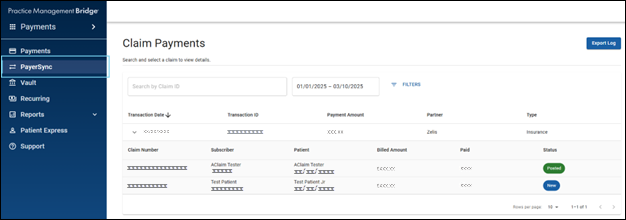
You can control how the information is displayed on the Claim Payments screen by clicking Filters and using the available options.
For even greater control, you can sort and rearrange the columns to suit your viewing preferences. - On the Claim Payments screen, select an insurance payment to view the list of claims included in that payment.
- To view the EOP, including adjustment details and Remark Codes, select a claim.
- On Claim Details, view the claim-line level details.
Hovering over a remark code displays the full description.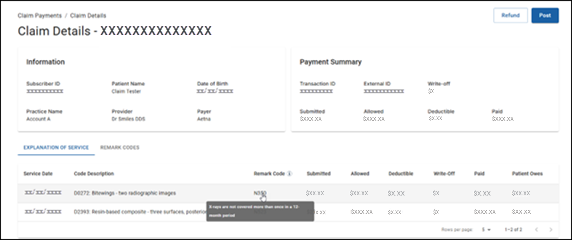
- (Optional) Download or print the EOP for your records or for uploading to your practice management system (PMS).
To download the EOP: Click Download to open the print preview modal, then choose to save the EOP as a PDF.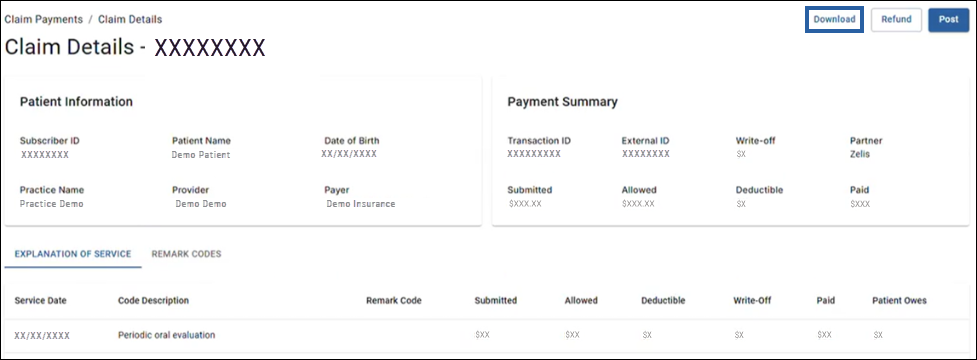
To print the EOP: Click Download to open the print preview modal, then choose to send it to a printer.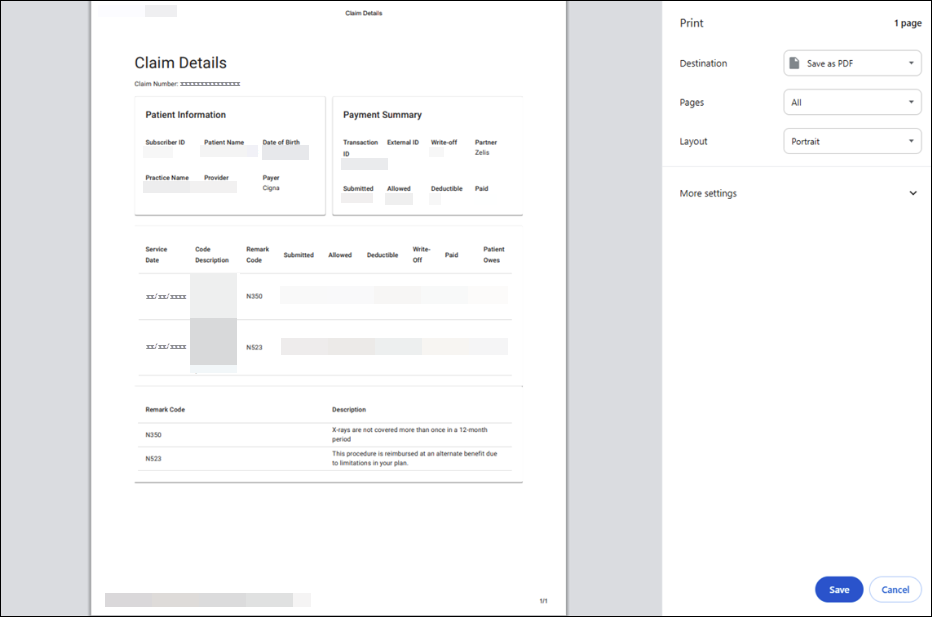
Helpful?