
You may need to deactivate a Recurring payment plan to stop future charges, such as when a patient decides to pay their balance in full rather than continuing their installment payments.
Instructions
- Select Recurring in the left menu.
- Search for the recurring payment plan by entering your search criteria or leave all the fields empty, then click Submit.
The best way to search for a specific payment plan is to enter the cardholder name or an Additional Information field that was filled out when the payment plan was created (such as patient name or patient account number). - Locate the payment plan record and click its Recurring ID link to view the details of the recurring plan from the Search Results.

- Click Deactivate on the Recurring Payment Plan Details pop-up.
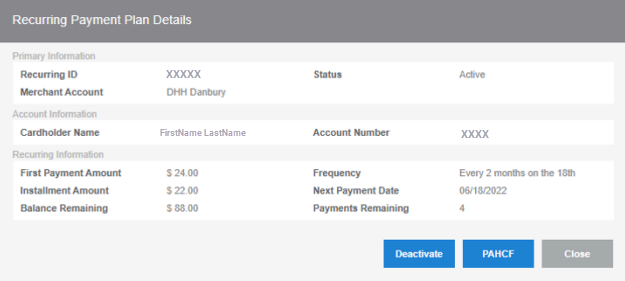
- Choose OK on the pop-up that asks you to confirm if you want to deactivate the recurring payment plan.
You will receive a confirmation that the payment plan has been deactivated.
Helpful?