
If you're having issues with payment posting, start by reviewing the best practices below. Then follow the troubleshooting steps for the common posting-related problem you are experiencing.
Best Practices
To ensure posting is functioning as expected:
- Start from the correct screen.
Confirm you're using the right starting screen—whether it's the Payments screen or a specific field that must be selected before charging/posting. - Enter all required information.
Include details such as Patient Name and Patient ID/Account Number during the transaction process so the system can post correctly. - Use separate browser windows.
If you are using a web-based practice management system (PMS), open Practice Management Bridge and the PMS in two different browser windows, not in separate tabs of the same window. - Avoid using the mouse/keyboard during posting.
Interacting with the system while posting can interfere with the process.
Troubleshooting
- Payments Are Not Posting in Practice Management Bridge
- Practice Management Bridge Pulls EMR/Payments Screen to the Foreground with No Data in the Fields
- Only a Portion of the Expected Payment Information is Posted into the System
- Need More Help?
Payments Are Not Posting in Practice Management Bridge
If payments are not posting, manually restart the Rectangle Health Windows Agent.
Instructions
- Type Task Manager in the Start menu and open it.
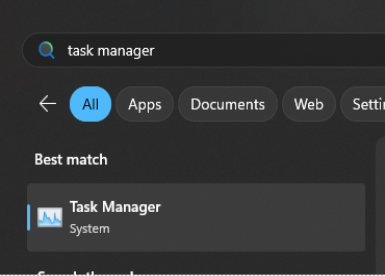
- Select the Services tab.
- Locate RHWindowsAgent in the list.
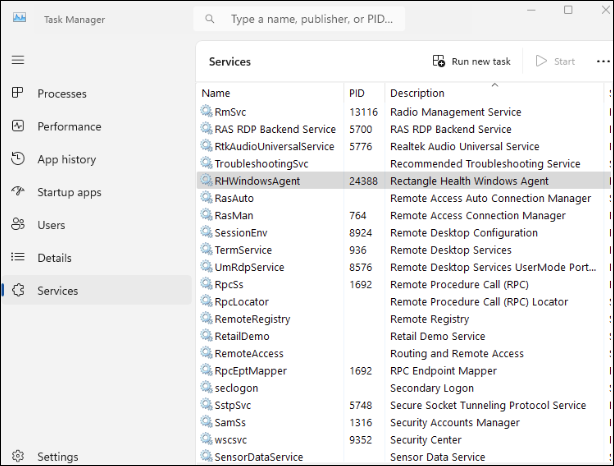
- Right-click RHWindowsAgent and select Start or Restart.
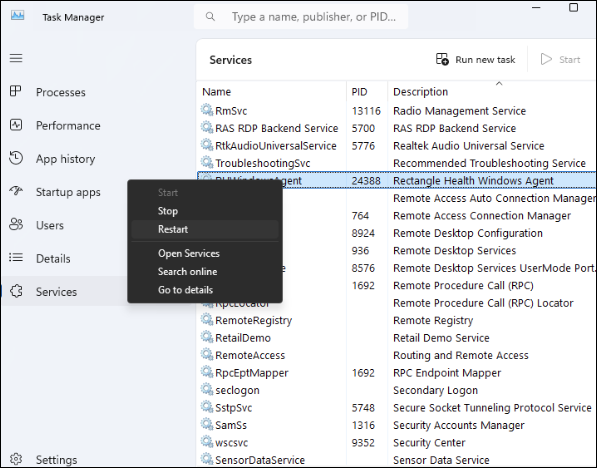
This will ensure that the Rectangle Health Windows Agent is running. If it was not previously running, posting should now be functioning as expected.
If manually restarting the Rectangle Health Windows Agent did not resolve the posting issue, restart your PC by clicking Start > Power ( ) > Restart. This will also restart the Rectangle Health Windows Agent.
Practice Management Bridge Pulls Electronic Medical Records (EMR)/Payments Screen to the Foreground with No Data in the Fields
If Practice Management Bridge pulls the electronic medical records (EMR)/the Payments screen to the foreground, but no data is entered into the fields, follow the steps below.
Instructions
- Close and reopen your practice management system (PMS)/EMR system.
- Retry posting from Transaction Reports:
- Click Reports > Transaction Search in the left menu.
- Enter search criteria and click Search.
- Confirm that the associated patient ledger is open in your PMS/EMR system.
- Post the payment.
Option 1: Click POST in the transaction row.
Option 2: Click the Transaction ID (TXN ID) number in the search results, and then click Post in the Transaction Details window.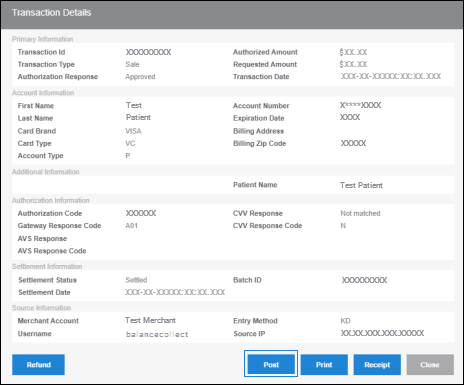
- Verify that the patient account has updated.
Additionally, contact Technical Support at 800-337-3630 (option 4) to ensure the root of the issue is resolved.
Only a Portion of the Expected Payment Information is Posted into the System
Practice Management Bridge may be executing the posting faster than your PC is able to accept the information. Rebooting will wipe the slate clean and help things run quicker.
Instructions
- Reboot your PC (Start > Power (
 ) > Restart).
 - Try posting again.
If this resolves the issue, check your PC performance or restart your PC weekly.
Need More Help?
If you are still having issues with posting, contact Technical Support for further assistance 24/7 by calling 800-337-3630 (option 4).