
You can use Transaction Search to locate Recurring payments (including failed recurring payments) in Bridge Payments.
Interactive Walkthrough
To follow an interactive walkthrough of this process, see Managing Recurring Payments: Identifying Failed Payments.
Text Instructions
- Click Reports > Transaction Search in the left menu.
- Expand Username/Source and select Recurring.
- Select the current day for your daily report for Start Date/Time and End Date/Time.
- If you have more than one location, expand Merchant Account and select the applicable location.
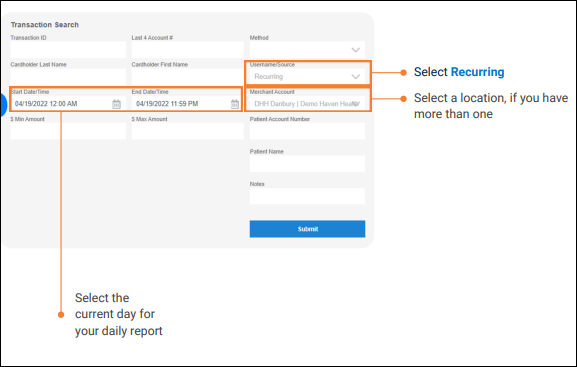
- Locate any declined transactions for recurring payments of the specified day in the Search Results.
Tip: Failed Recurring payments have Decline in the TXN Type column.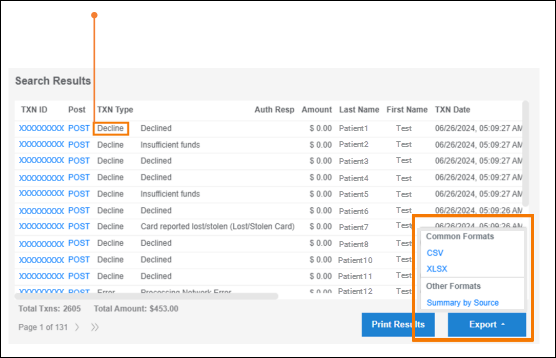
- (Optional) If you are working with a large number of Recurring payments, export a report of the search results as a plain Comma Separated Value (CSV) file or as a Microsoft Excel (XLSX) file.
Failed Recurring payments will have Decline in the Transaction Type column.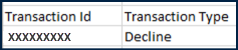
Best Practices
Important: Due to high volume on the 1st and 15th of the month, Recurring payments run towards the end of the day.
- Conduct your posting and reconciliation activity towards the end of the day instead of early morning.
- Run a daily report of all Recurring payment plans to identify any declined Recurring payments.
What to Do When a Recurring Payment Fails
Scheduled payments can fail for several reasons, including:
- If there are insufficient funds available
- If the card has been used for suspected fraudulent activity
- If the card is expired or no longer in use
What the system does:
Failed Recurring payments might automatically retry, depending on your practice's configuration. By default, failed Recurring payments are retried according to the retry rules for failed payments schedule.
What you should do:
When a Recurring payment fails:
- Contact the patient first to gather information on why the payment failed.
- Decide how to proceed.
In some cases, the issue with the payment method is only temporary. In other cases, you should deactivate the plan and create a new one with updated payment information.
You will not be able to hold the payment plan while you communicate with the patient.
If a transaction is declined due to insufficient funds:
Notify the patient and wait for the system to retry the payment method.
Partial payments are supported. If a partial payment is collected from a debit or HSA card, the system will move on to collect the next payment as scheduled.
If a transaction is declined due to an issue with the card or any reason besides insufficient funds:
- Contact the patient for their new card information.
- Deactivate the existing payment plan.
- Create a new payment plan.
Retry Rules for Failed Payments
If the payment method that is stored on file for a Recurring payment plan fails to process, the Practice Management Bridge system automatically reattempts to charge the payment method according to the rules below.
To stop the system from retrying a payment, deactivate the failing payment plan.
You cannot modify retry rules for any payment plans that were created prior to February 22, 2023.
| Payment Plan Type | Retry Frequency | Number of Retry Attempts |
| Created on the By Balance Due tab |
If the first installment of the payment plan fails, the payment method is retried once every day. If a later installment fails, the payment method is retried once after 7 days. |
For the first installment: unlimited attempts For the remaining installments: 1 attempt |
| Created on the By Installment Amount tab | If any of the installments fail, payment is retried once after 7 days. | 1 attempt |
| One-time future payment created on either tab | If the one installment fails, payment is not retried. | 0 |
If the card stored on file for the Recurring payment plan needs to be updated or replaced, deactivate the plan and then create a new one.
Upon deactivation, the attempts to charge the failing payment method will stop.
Need Help?
Contact our Customer Care team at [email protected] or call 800-337-3630 (option 3) if you need assistance with the following:
- To turn off or change failed payment retries.
- To turn off or modify the retry schedule.