
If you have Compliant Surcharging, the process to issue a partial refund is slightly different than issuing a partial refund without Compliant Surcharging.
Prerequisites:
- You must have a Practice Management Bridge plan that includes Compliant Surcharging.
Instructions
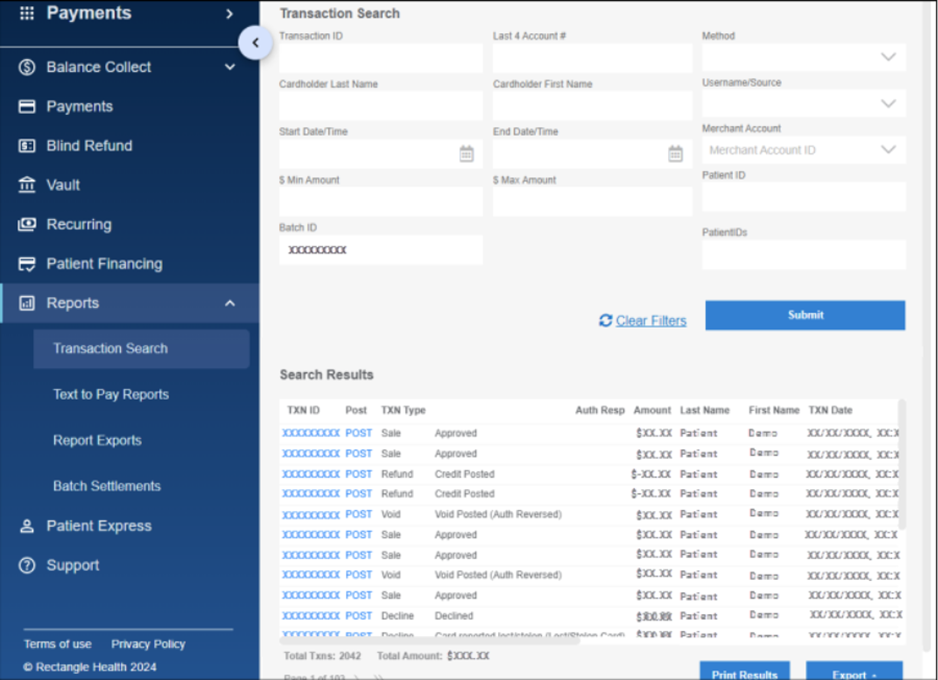
- Click Reports > Transaction Search in the left menu.
- Apply search filters in Transaction Search, then click Submit.
- Locate the transaction in the search results, and then click the Transaction ID link in the TXN ID column.
- Click Refund at the bottom of the Transaction Details screen.
Refund will appear if the transaction has settled.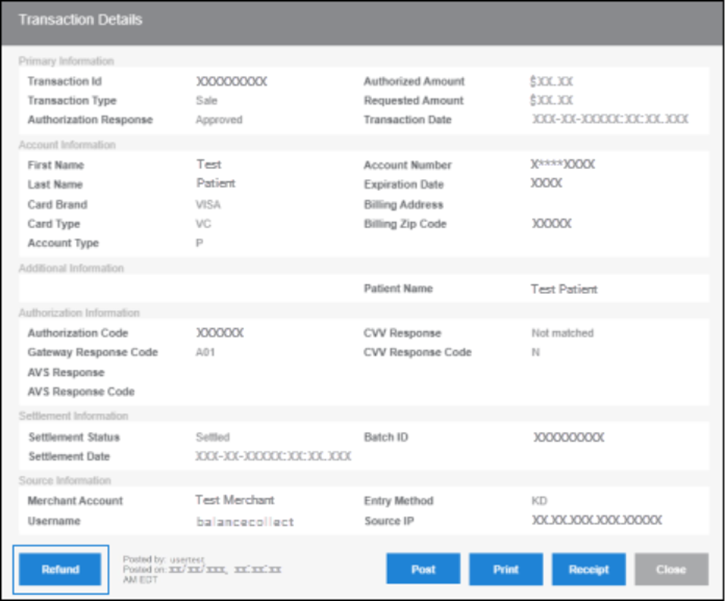
- On Confirm Refund Amount, enter a lower amount.
The Partial Surcharge Amount is automatically calculated based on the refund amount entered.
The Total Refund Amount is calculated with the Partial Surcharge Amount.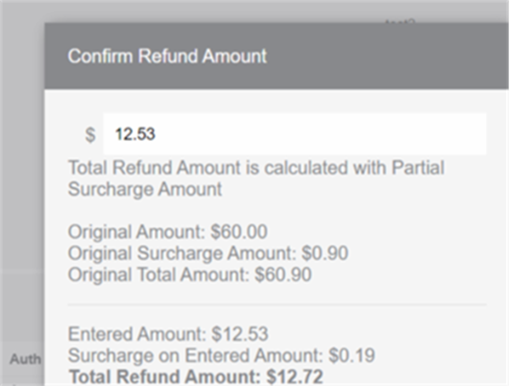
- Click Okay to issue the partial refund.
- On the Payment Accepted screen, email or print the refund receipt.
To email the refund receipt: Enter the cardholder's email address and modify the email body to specify that a refund was issued. Click Email to send the email receipt.
To print the refund receipt: Click Print.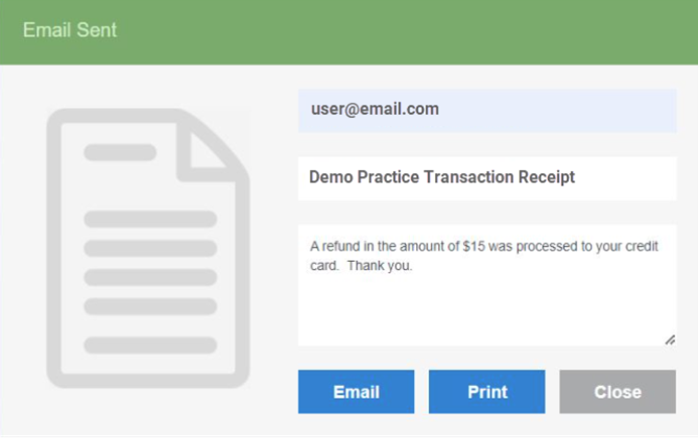
Need Help?
Compliant Surcharging is not included in all Practice Management Bridge plans. For more information about your plan, contact our Customer Care team by calling 800-337-3630 or emailing [email protected].
Helpful?