
If you do not see Patient Express as an option in your menu within Bridge Payments, contact your practice administrator or contact Customer Care at 800-337-3630 (option 3) or [email protected].
If your practice uses a digital form that collects a payment method for card on file ("Medical Registration with Card on File" or "Payment Authorization"), you can access the Vault record in Patient Express within Bridge Payments after a patient submits the form.
Instructions
- Select Patient Express in the main menu.
- Search for the patient.
- (Optional) Verify whether the patient has been sent a registration link by reviewing the Email Sent and Text Sent columns.
- Click Vault under the Form Complete column.
If Vault is not available under the Form Complete column and the View button is grayed out, it means the patient has not submitted their registration.
Vault will then open with the record for the card on file displayed in the Search Results.
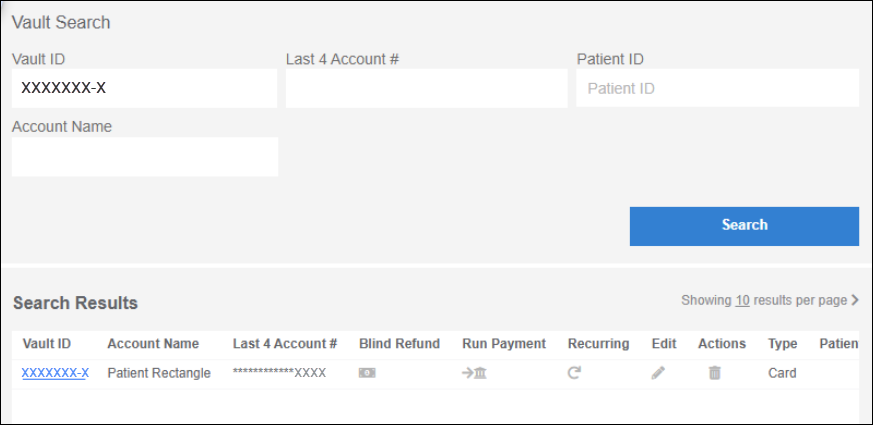
When a patient stored their card on file during registration, the Vault ID associated with that patient's card on file will correspond to their Patient ID in the system, with the addition of -1 for easy identification during a Vault search.