
A card-present payment is initiated when the cardholder inserts, swipes, or taps their card.
The following payment methods are also available for card-present payments at card readers:
- Apple Pay
- Google Pay
- Samsung Pay
Video Instructions
Watch the video below to see how to take a payment using a chip and signature card reader.
Text Instructions
- Wait for the Enter Card Details pop-up to open after the cardholder initiates the card-present payment.
The payment details should automatically be filled out. If the payment was initiated by the cardholder tapping their card, you will need to enter the card holder's first and last name manually.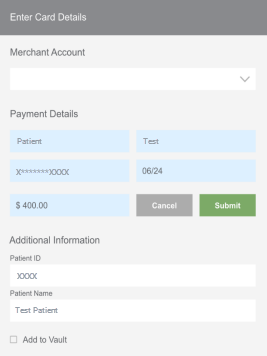
- Select your location (Merchant Account) if you have more than one. No selection is required if you only have one location.
- Enter the amount that is owed.
- (Optional) Enter information in the field(s) under Additional Information.
If you have any Merchant Defined Fields (MDFs), which are custom fields that allow you to track additional patient information on the transaction, they will appear under the Additional Information section. - (Optional) Check the Add to Vault box to securely store the card on file to the Vault if desired.
- Click Submit.
- A message will indicate the transaction was approved, and the card reader will prompt the cardholder for a signature.
Capture Signature: Wait for the cardholder to provide their signature on the card reader.
Skip Signature: Click No Signature to skip the signature.
The No Signature button will appear when you run a card-present payment using an EMV-certified touch screen card reader.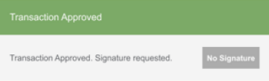
- The Payment Approved window will appear, and you can choose to view, print, or email the receipt.
To view the receipt: Click Print > wait for the Browser Print pop-up to open > view the receipt.
To print the receipt: Click Print > wait for the Browser Print pop-up to open > format as desired, then click Print.
To email the receipt: Enter the recipient's email address > modify the default Subject line (if desired) > add a custom message by typing your text above the default "Do-Not-Reply" message (if desired) > click Email.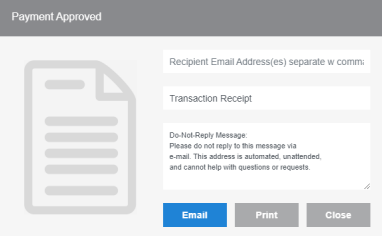
Tips
- Ensure you are logged into Practice Management Bridge before taking payments.
If you are not logged in: You card reader will display a "Lane is closed" message.
If you are logged in: Your card reader will display a "Ready" message. - Confirm that the Terminal connector indicator icon in the top right corner of Practice Management Bridge is green.
If it's green: This confirms the connection to the card reader, and you can proceed with accepting card-present payments.
If it's not green: This means the card reader is not connected, and the reason depends on the color. - You can accept card-present payments on any screen in Practice Management Bridge or if the application is minimized and running in the background.
Considerations
- For an EMV (chip, dipped) transaction, the card reader will authorize the payment and prompt the cardholder to remove their card before anything happens on the Bridge Payments screens.
- If the cardholder uses the tap function to pay, the card reader may require the card to be tapped and held for 2-3 seconds. A successful tap will typically be indicated by a beep, green light, or message on the screen saying that the card was detected correctly.
Related Articles
Helpful?