
You can post payments from Bridge Payments. It's likely that your office is set up to have point-of-care payments post automatically when you have the patient's ledger open. But there will be times when you need to manually post transactions, such as:
- Recurring payments and Balance Collect (online) payments always require a click to post (unless you're using a version of Practice Management Bridge that is integrated with your practice management system (PMS)).
- If you have a click-to-post integration that doesn't post the payment automatically.
You can post all types of payments from Reports > Transaction Search in Bridge Payments.
Instructions
Tip: Make sure you have the associated patient ledger open in your PMS or electronic health record in the background before you initiate a posting in Bridge Payments.
- Click Reports > Transaction Search in the left menu.
- Enter search criteria and click Search.
- To post the payment, do one of the following in Bridge Payments:
Option 1: From the search results, click POST in the transaction row.
Option 2: Click the Transaction ID (TXN ID) number in the search results, and then click Post on Transaction Details.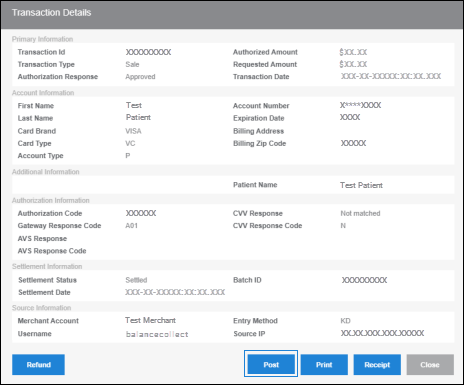
The payment will then automatically post to the patient ledger.
Regardless of which Post function you use, the posting details will appear in Transaction Details and will also appear in the Search Results when you scroll to the right.
Helpful?