
There are four areas in Bridge Payments for reports:
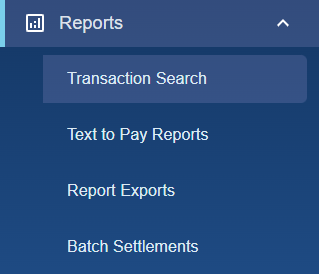
Transaction Search
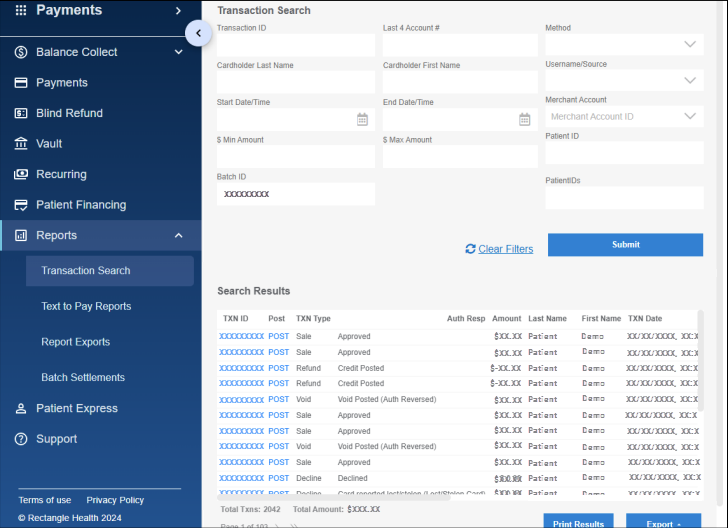
Transaction Search (Reports > Transaction Search) is where you can:
- Search for transactions.
- View transaction details.
- Post payments with click-to-post (if you post payments to an electronic record).
- Refund and void payments.
- Email and print receipts.
- Print or export your transaction search results as a CSV, XLSX, or Summary by Source file.
Text to Pay Reports
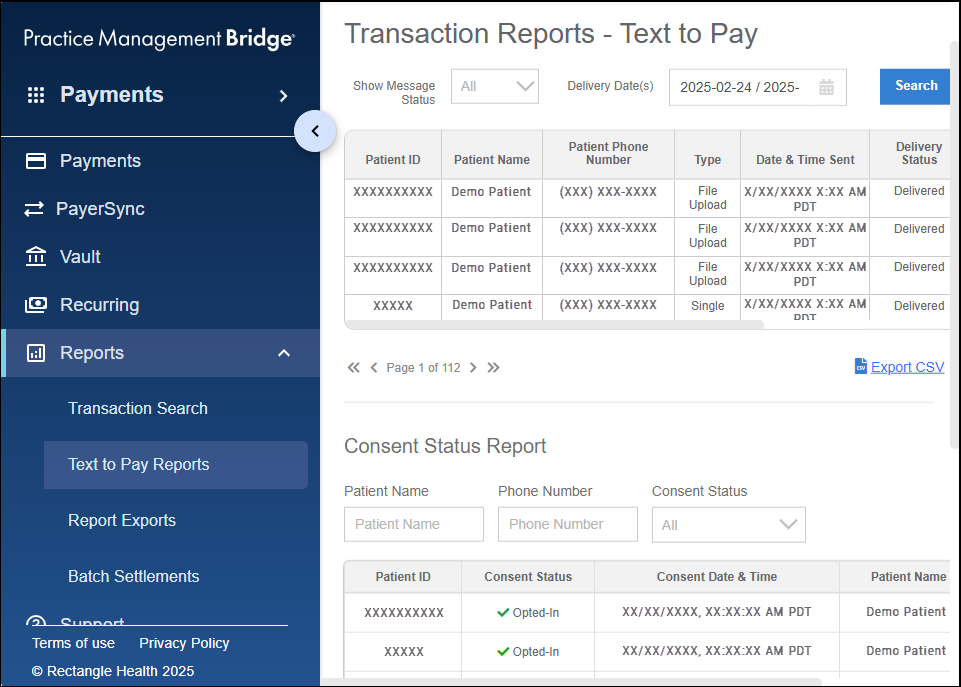
Text to Pay Reports (Reports > Text to Pay Reports) is where you can:
- Track sent messages with real-time details on the status and success of Text-to-Pay and Bulk Text-to-Pay (if enabled) messages.
- See whether patients have opted in or out of text messaging within the Consent Status Report.
- Export your Transaction Reports - Text to Pay and Consent Status Report as a CSV or XLSX file.
Report Exports
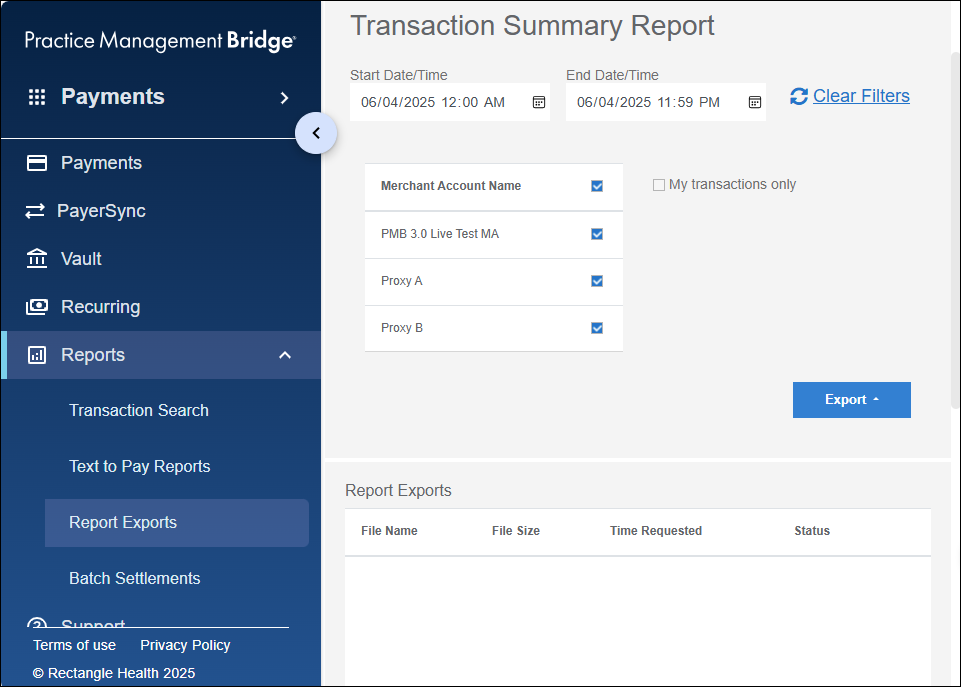
Report Exports (Reports > Report Exports) is where you can:
- Export a Transaction Summary Report.
- View your previous report exports (up to seven days from the date the report was exported).
Transaction Summary Reports provide high-level details of the selected date range's sales, refunds, declinations, and voids, in addition to a full list of the transactions within the date range. You can export Transaction Summary Reports as XLSX or CSV files.
Batch Settlements
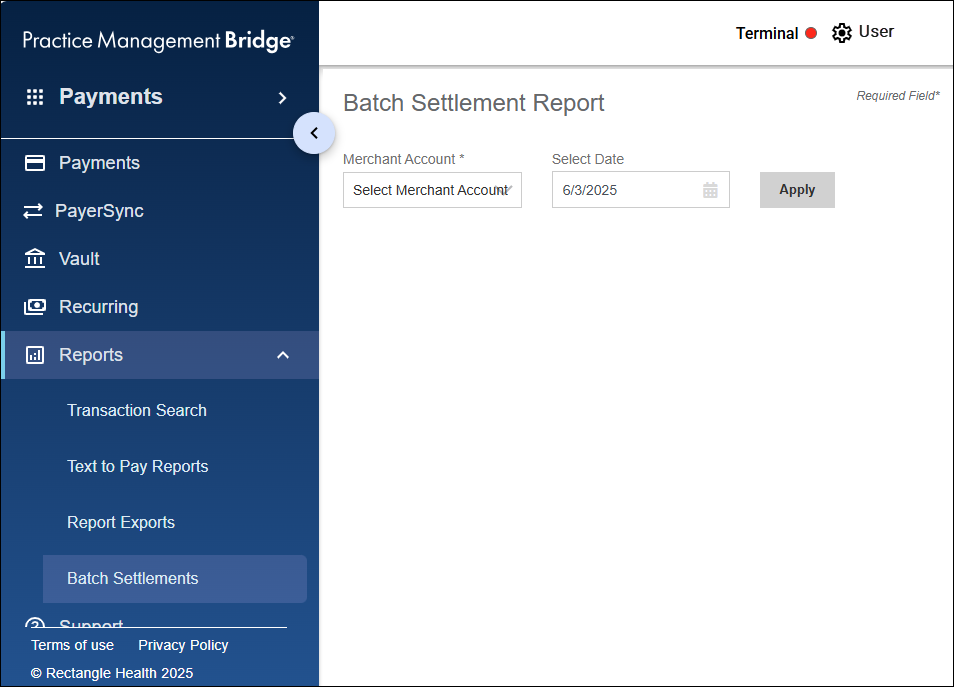
Batch Settlements (Reports > Batch Settlements) is where you can generate a Batch Settlement Report.
Helpful?